Procreate & other Great Apps I use in my Painting Process
Visualizing Different Approaches using Apps
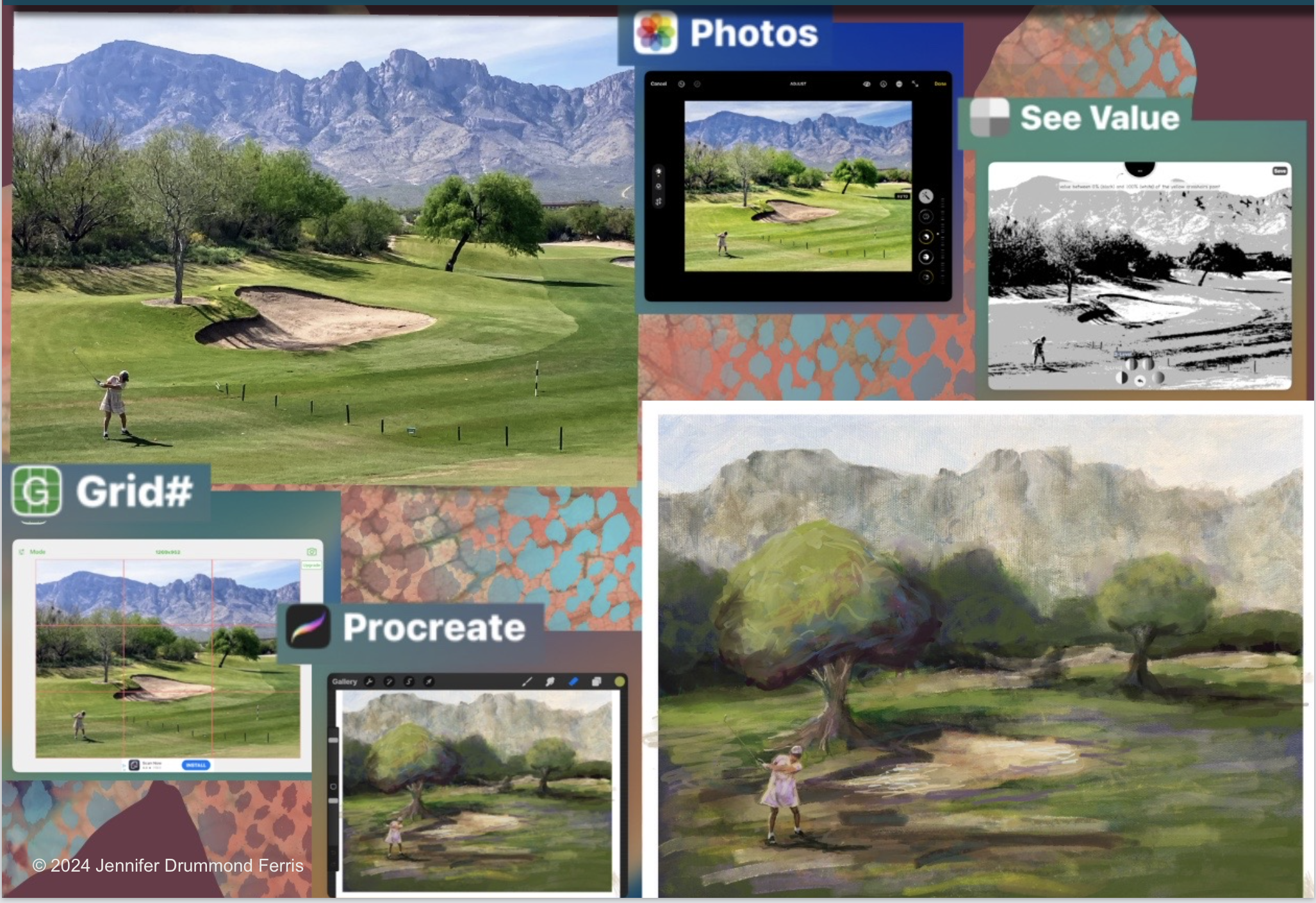 The image above shows an example of how I might use apps to help me plan and/or improve a painting. Please note that I am using all of these apps on my iPhone or iPad.
- Photos - The edit function within the standard Photos app on your iPhone is a great place to start when planning a painting from a photo reference.
- SeeValue - I use this app to make sketching easier by focusing first on the large value shapes.
- Grid# - This app is great for putting a grid on your image so that you can use the grid transfer method for getting your image sketched to the correct proportions on your canvas.
- Procreate - This app is great for experimenting, either in the planning process, or later to try out different approaches.
When painting from a reference photo, the first step I recommend is to crop your photo to the same proportions as your canvas/painting surface. You can do this within the Photos app on your iPhone or iPad:
- Open Photos.
- Find your image in the photos app and click on it.
- Click “edit”
- Click the “crop/rotate” icon in the lower right area of your screen.
- Click the “crop to size” icon in the upper right area of your screen.
- A menu will appear at the bottom of your screen that reads: “rectangle square freeform...”.
- If your canvas/painting surface is a square, then click on square.
- If it is not a square, then swipe to where you see a selection of ratios like 8:10 (or 10:8). Choose the ratio that is proportionate to your canvas size. For example, if you have a 20x30 canvas, choose 3:2 or 2:3.
While you are in the cropping mode of the Photos app, there are other helpful options as well:
- You can zoom in to crop out part of your image by sliding your fingers apart.
- You can switch from a landscape format image to a portrait format or vice versa.
- You can use the rule of thirds when cropping your image to determine where to place your focal point. Notice when you have your fingers on the image a subtle grid appears.
Next I recommend using the app “SeeValue” to help you identify the large value shapes in your image.
- Open SeeValue.
- Click the folder icon and open your image. (If you don’t see your image, click on “Albums” and then choose the album titled “Recents.”)
- Once your image is visible, click on Filters.
- Click on 2-values.
- Move the slider to the left or right to adjust your image to lighter or darker as desired.
- Click “Save”. This will save your value map in your iPhone photos.
- Do the same for 3-values and 4-values.
At this point, you could go ahead and freehand sketch your image onto your canvas. But, if it is a complicated image, or one where the proportions need to be correct, you might want to use the grid method.
- Open Grid#
- Click the camera icon, then choose "Photo Library", and then select your image.
- You should now see lines forming a grid on top of your image. I recommend starting with a 4x4 grid. If you see more or less than 4 rows and 4 columns, then you can adjust this in settings. Settings are accessed using the icon that looks like three lines with a dott on each line.
- Adjust the number of rows and columns (col), and then click Save to save your grid settings.
- When you are ready to save your image with the grid on top, press your finger on your image and a menu will appear.
- Choose "Save Grid & Image"
- Put a matching grid on your canvas/painting surface.
Procreate is a full-featured app offering lots of possibilities to experiment in planning your painting, and /or in deciding on adjustments throughout the painting process. It is too much to cover in this blog post, so please check back later for a blog post covering more about Procreate.
If you would like to see these apps in action, check back for my series of painting process online workshops.
For More Info:
Please contact Jennifer at Ferris Wheel Arts, an Art Studio for Adult Painting Lessons in Roswell, Georgia.